

How Your Scanner Talks to Every App You Own
Scan from the maker's utility, a photo editor, or your operating system's built-in tool — and somehow they all drive the same hardware. A scanner driver's job is making that universal access work.
What a Scanner Driver Does
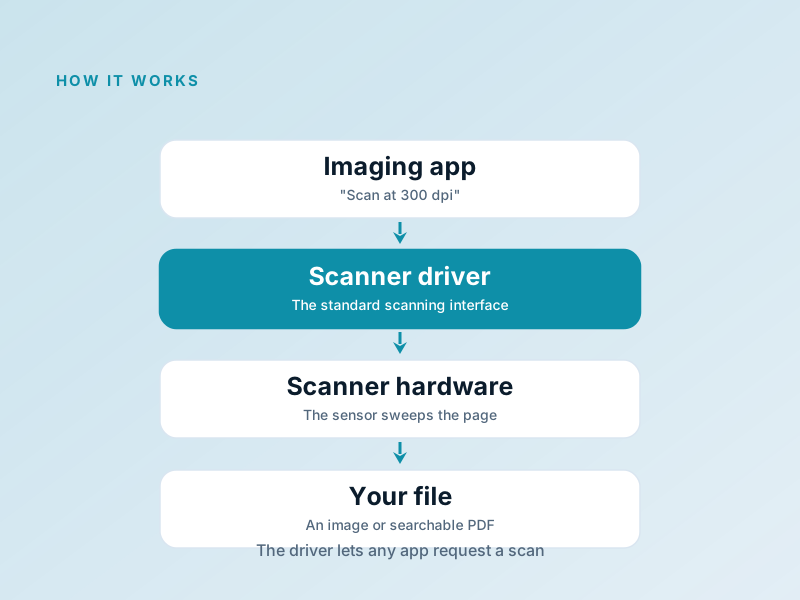
A scanner driver implements the standard scanning interfaces that imaging applications rely on. When any app asks for “a 300 dpi colour scan of this area,” the driver translates that request into hardware commands, runs the sensor across the page, and streams the image data back to whichever program asked.
On multifunction printer-scanner devices there's an important wrinkle: the scanning driver is a separate piece of software from the printing driver. They ship together in the maker's full package — but a print-only installation quietly leaves scanning out, which explains one of the most common support mysteries below.
- Implements the standard interfaces scanning apps rely on
- Carries resolution, colour, and area settings to the hardware
- Streams the scanned image back to your software
- Installs separately from printing on multifunction devices
When the Printer Works but the Scanner Doesn't
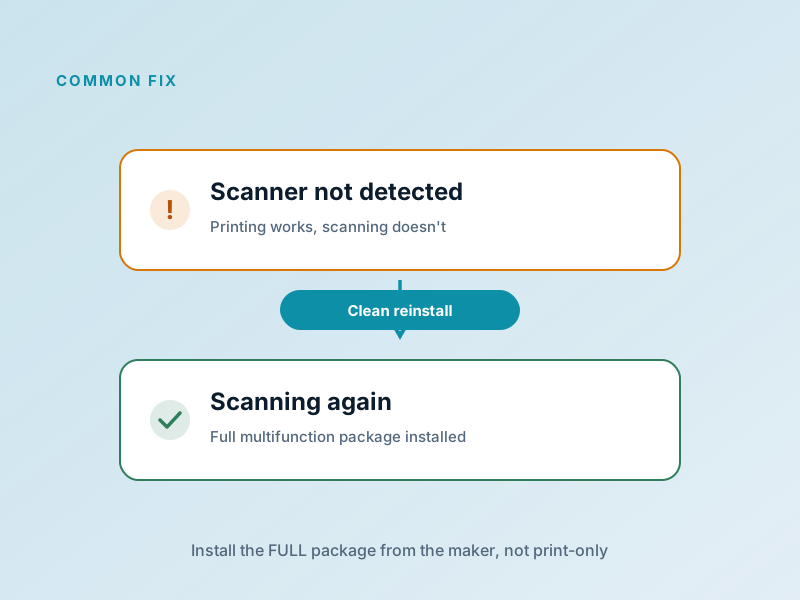
It's the classic multifunction complaint: printing is flawless, yet every scanning app insists no scanner exists. Nine times out of ten, the machine was set up with a basic or print-only driver, and the scanning half of the software simply was never installed.
The second classic is network scanning: printing travels one way, but scans travel back from the device to your computer — and a firewall can silently block that return path. Installing the maker's full package and allowing its scan utility through the firewall resolves the overwhelming majority of cases.
Fix it in five careful steps
- Test with the maker's own utility — If the manufacturer's scan tool sees the device, the driver is fine and the problem is in the other app's settings.
- Install the FULL package — Download the complete software bundle for your exact model — the one that lists scanning — not the basic print driver.
- Open the firewall for network scanning — Allow the maker's scanning utility through your firewall so the scanned image can travel back to the computer.
- For USB: go direct — Connect to a port on the computer itself with a known-good cable — skip hubs while troubleshooting.
- Restart both ends — Power-cycle the scanner and reboot the computer, then run a test scan from the OS's built-in tool.
If anything here feels out of your depth, that's a normal feeling — a local technician can run this exact routine in minutes. Nothing on this page requires special tools.
Common Device Manager codes for this category
A scanner that's visible to the system but unhappy will show one of these Device Manager codes:
| Code | What it means in plain English | The usual fix |
|---|---|---|
Code 28 | No driver is installed for the scanner. | Install the maker's full package — not the print-only driver — for your OS version. |
Code 10 | The scanner cannot start. | Uninstall the device in Device Manager, restart, and reinstall the full package. |
Code 45 | The scanner isn't currently connected. | Reseat the USB cable or re-check the network connection, then power-cycle the device. |
Code 19 | The device's configuration information is damaged. | Uninstall the device and let it reinstall cleanly on restart. |
Frequently Asked Questions
The questions readers send us most about this topic.
My printer prints but won't scan. How is that possible?
On multifunction devices, printing and scanning use separate drivers. A quick or print-only setup installs just the printing half. Download the full software package for your exact model and the scanner half appears alongside it.
Scanning works over USB but not over Wi-Fi. Why?
Scans travel from the device back to your computer, and firewalls sometimes block that inbound path. Allow the maker's scanning utility through your firewall and ensure both devices are on the same network.
Will my older scanner work with a new operating system?
Check the maker's support page for a driver matching your OS version. Makers eventually stop updating drivers for older models — if yours has been dropped, the OS's built-in scan support sometimes still operates it at a basic level.
Want us to explain another driver topic?
Our friendly overview covers every major hardware category — from the device on your desk to the chips inside your laptop.