

Every Driver Family, Explained in Plain English
Drivers are simply translators between your software and your hardware. Explore each driver category to understand what it does, why it matters, and how to keep it working smoothly — no technical jargon required.
Understanding Drivers Made Simple
Every piece of hardware on your computer — from your printer to your graphics card — needs a driver to work. But understanding drivers doesn't require a technical degree. Our guides break down what each one does, why updates matter, and how to keep everything running smoothly.
Whether you're troubleshooting a problem or just curious about how your PC works, we explain things in plain English, step by step, with no jargon.
Hardware Categories
Learn about printer, graphics, audio, network, chipset, and storage drivers.
Clear Explanations
No complex terminology — just practical, understandable guidance.
Maintenance Tips
Understand updates, compatibility, and common troubleshooting practices.
Explore Every Driver Family
From printers to chipsets, every hardware category has a guide written in simple, straightforward language.
Explore Driver Families
Click a tab to see a plain‑English overview of each driver type.
Printer Drivers
What it does: Translate print jobs from your OS into signals your printer understands.
Why it matters: Without the right driver, prints can be garbled, low‑quality, or fail entirely.
Quick tip: Check the manufacturer’s website for the latest version when you install a new printer.
Advanced Driver Architecture
Explore the deeper layers of driver technology. Understand privilege levels, driver isolation, and the differences between kernel and user mode.
Kernel-Mode Drivers →
Privileged execution. Direct hardware access with system-wide responsibility. Essential for storage and GPU, but risky.
User-Mode Drivers →
Safe isolation. Run in restricted user space. If they crash, only the driver stops, not your system.
Chipset Drivers →
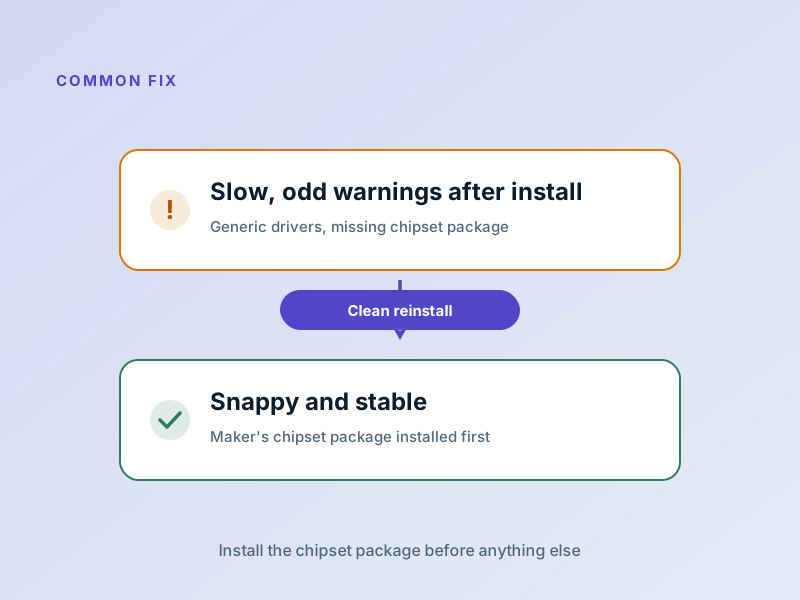
System foundation. Manage your motherboard's chipset. Install these first — everything else depends on them.
Storage Drivers →
Data management. Handle SSDs, HDDs, and NVMe. Critical for performance and reliability of your storage devices.
Input Devices →
Every click and keystroke. Keyboards, mice, touchpads, game controllers. Usually work with generic drivers.
Virtual Device Drivers →
Software hardware. VMs, VPNs, and emulators use virtual drivers that pretend to be real hardware.
Where Do Drivers Actually Live on Your PC?
Spoiler: they're not hiding in some secret folder. Your computer keeps them in a few well-known places — and once you know where to look, you can check, manage, and tidy them up like a pro.

Inside the Device Manager
This is the friendliest place to start on a Windows PC. Right-click the Start button and pick "Device Manager," and a tidy list of every piece of hardware on your machine appears — neatly grouped by category. Click any item and you can see its driver, check its version, update it, roll it back if a recent update caused trouble, or remove it entirely. It's like a backstage pass to the people running the show.
Through Settings & Updates
On modern Windows systems, head to Settings, then Windows Update, then "Advanced options" and look for "Optional updates." Many driver updates quietly arrive here — already tested for your machine. On macOS, drivers are bundled into regular system updates, so just keep your OS current. On Linux, your distribution's package manager (or a built-in "Additional Drivers" tool) does the same job.
The Hardware Maker's Website
Every reputable hardware maker keeps a "Support" or "Drivers" section on its official website where you can download the very latest driver for your exact model. This is the go-to spot when you need a brand-new feature, a performance boost, or a fix for a specific bug. Always download directly from the official site — never from a random pop-up — and double-check the driver matches your operating system version.

A Friendly Voice in a Noisy Tech World
We are a small, independent education project built around one stubborn idea — technology should not feel intimidating. Every overview on this site is written to make sense the first time you read it, whether you are a complete beginner or someone who already knows their way around a kernel debugger.
No sponsorships. No affiliate links. No "instant driver updater" nonsense. Just clear, honest explanations of how things actually work.
- ✓Independent and free to read, always
- ✓Plain-English first, technical accuracy second to none
- ✓Privacy-respecting — no aggressive trackers or sold data
How to Know Which Driver You're Actually Using
Curious which driver is in charge of your sound, your screen, or your network? It only takes a few clicks to find out — no special tools required.
On Windows
Open Device Manager: Right-click the Start button and select "Device Manager." This shows every piece of hardware on your computer.
Find your device: Expand the category your device is in (Display adapters for GPU, Sound, video and game controllers for audio, etc.).
Check the driver: Right-click your device and select "Properties." Click the "Driver" tab to see the driver name, date, version, and publisher. This tells you exactly what's running.
This is the cleanest way to confirm what's running before you decide to update.
On macOS
Open System Report: Click the Apple menu, choose "About This Mac," then click "More Info" and "System Report."
Browse hardware: Look at sections like Graphics, Audio, USB, Bluetooth, or Network. Each section lists the underlying driver (called a "kext" or "extension") along with its version.
Understand what you see: macOS handles most drivers automatically behind the scenes, so what you're usually seeing are clean, system-managed entries that just work.
macOS rarely needs driver updates because they're bundled into OS updates.
On Linux
Open a terminal: Use these friendly commands to see what drivers you have loaded:
lspci -k
Shows connected hardware and their drivers.
lsusb
Lists USB devices and drivers.
lsmod
Shows every driver module currently loaded in the kernel.
How to Update Drivers Safely
Driver updates can fix bugs, improve performance, and add new features. Here's the safe, step-by-step approach that works on any operating system.
✓ Step 1: Know What You're Updating
Use Device Manager (Windows) or System Report (Mac/Linux) to identify exactly which driver you need to update. Write down the device name, model, and current driver version.
✓ Step 2: Back Up Your System
Create a system restore point (Windows) or backup (Mac/Linux) before updating. This gives you an escape hatch if something goes wrong.
✓ Step 3: Download from Official Sources
Go directly to the hardware maker's official website. Search for your exact device model and download the driver that matches your operating system version (32-bit vs 64-bit, Windows 10 vs 11, etc.).
✓ Step 4: Disable Antivirus Temporarily
Some antivirus software can interfere with driver installation. Temporarily disable it, install the driver, then turn it back on immediately after.
✓ Step 5: Install and Restart
Run the driver installer and follow the prompts. Many drivers require a full system restart to take effect. Don't skip this step — restart your computer completely.
✓ Step 6: Test and Verify
After restart, test your device to make sure it's working properly. Check Device Manager again to confirm the new driver version is installed.
When Should You Update Your Drivers?
Not all drivers need updates right away. Here's when updates actually matter and when you can safely wait.
🔴 Update Immediately
- •Your device isn't working at all
- •You just installed a new operating system
- •Your system is crashing or unstable
- •A security vulnerability was announced
🟡 Update Soon
- •Performance has degraded over time
- •A specific feature you need is missing
- •Your device is making weird noises or acting odd
- •After a major OS update (Windows 11, macOS Sonoma, etc.)
🟢 Can Wait
- •Everything is working perfectly
- •It's a minor version bump (1.5 → 1.6)
- •You use the device rarely or for basic tasks
- •The update just adds a small feature you don't use
Common Driver Problems & What to Do
Driver issues are more common than you'd think. Here are the problems we see most often and how to fix them.
"Device Not Found" or "Unknown Device"
What it means: Windows can't figure out what hardware this is, so it can't load the right driver.
How to fix: Go to Device Manager, find the unknown device, right-click it, and select "Update driver." Choose "Browse my computer" and point it to the manufacturer's driver folder.
Device Works But Performance is Slow
What it means: The driver is installed but may be outdated or not optimized for your hardware.
How to fix: Check the manufacturer's website for a newer driver version. Download and install it, then restart. Performance should improve noticeably.
Device Stopped Working After an Update
What it means: A recent driver update broke something, or your system is incompatible with the new version.
How to fix: Right-click the device in Device Manager and select "Roll back driver" to go back to the previous version that was working.
Your Computer Crashes When Using a Device
What it means: The driver has a bug that causes system instability when the device is used.
How to fix: Update to the latest driver first. If crashes continue, try an older stable version. Contact the manufacturer if neither works.
Driver Installation Keeps Failing
What it means: Something is preventing the driver from installing properly (antivirus, corrupted installer, etc.).
How to fix: Disable antivirus temporarily, delete any old driver files, restart your computer, then try installing again.
You Can't Find a Driver for Your Device
What it means: The device is old, rare, or the manufacturer didn't release drivers for your OS version.
How to fix: Try a generic or alternative driver from the OS vendor. Contact the manufacturer for old devices. Sometimes the device just won't work on your OS.
Where to Start If You're New to All This
If you're just learning about drivers, here's the best path forward.
1. Learn the Basics
Start with the driver category guides above. Pick one that matches a device you actually use (your printer, graphics card, network adapter). Reading about drivers you interact with makes it all click faster.
2. Check Your Current Drivers
Open Device Manager on Windows (or System Report on Mac) and browse around. Look at the devices on your computer. See how many drivers you actually have running right now? It's probably way more than you realized.
3. Visit the Manufacturer's Website
Find your device (printer, GPU, motherboard, etc.) and go to the "Support" section of the manufacturer's website. This is where drivers actually come from. Bookmark it — you'll use it eventually.
4. Try Updating One Driver
Pick a device that's working fine. Go through the 6-step update process above. See how painless it is when you take it step by step? Now you have the confidence to do it again.
5. Explore Our Guides
Each driver category has a dedicated guide on this site. They explain not just what a driver is, but why it matters for your specific use case.
6. Ask for Help
Stuck on something specific? Visit our Knowledge Base for step-by-step troubleshooting, or contact us with questions. We're here to help.