

The Soundtrack Between Your PC and Speakers
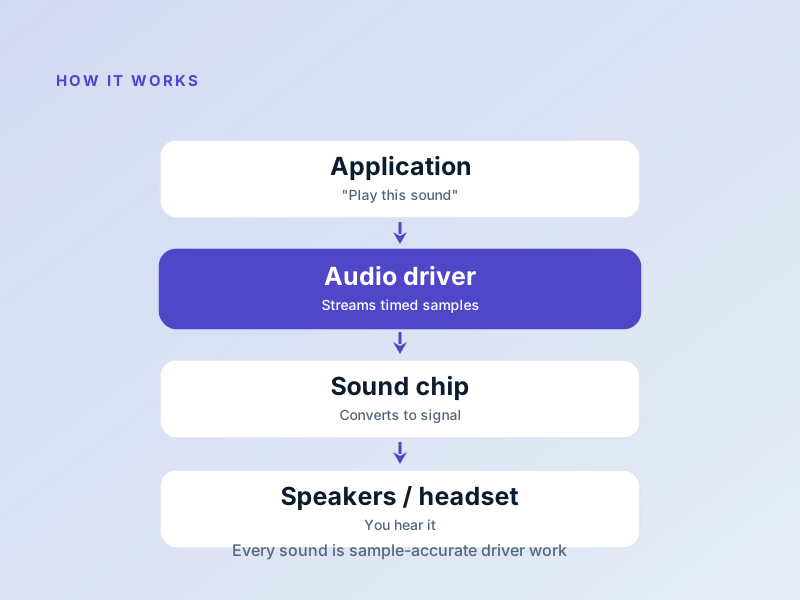
Every beep, music track, or voice chat you hear is translated from digital data into electrical signals by the audio driver.
What an Audio Driver Does
An audio driver tells the operating system how to talk to the sound hardware – the chip that produces analog waveforms for your speakers or headphones. It handles formats, sample rates, and volume control, and bridges applications (like music players or video calls) to the hardware.
- Translates digital audio streams into hardware signals
- Manages channels, sample rates, and mixing
- Provides volume, mute, and device selection APIs
- Enables special features like surround sound or voice activation
Typical Sound Issues & Fixes
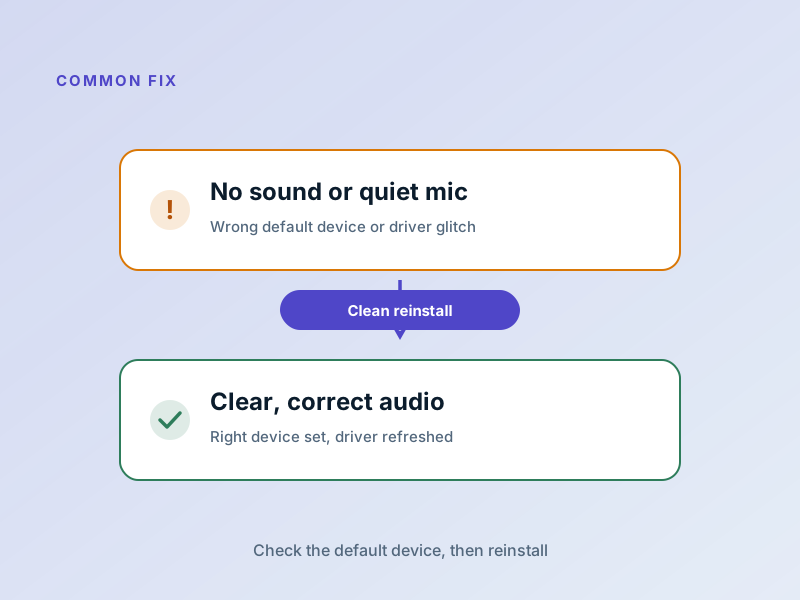
- No sound – reinstall the driver from the hardware maker
- Static or crackling – update to the latest driver and check audio format settings
- Wrong device – ensure the correct output device is selected in system sound settings
- Latency in voice chat – use the high‑performance driver mode and disable audio enhancements
Fix Audio in Five Simple Steps
- Identify the hardware – open Device Manager → Sound, video and game controllers and note the exact model.
- Download the correct driver – get it from the manufacturer’s website or your PC maker’s support page.
- Uninstall the old driver – in Device Manager, uninstall and tick “Delete the driver software”.
- Install the new driver – run the installer, choose a clean install if offered.
- Restart and verify – reboot, then play a test sound and check that the correct device is selected.
If anything feels beyond your comfort level, a local technician can run this routine in minutes. No special tools required.
Understanding Audio Formats & Sample Rates
Audio on your computer is stored and transmitted in different formats. Understanding the basics helps you diagnose sound quality issues and match your hardware to what it's actually capable of.
Sample Rate (Hz)
What it means: How many times per second the audio is sampled (measured) to create digital sound. Like the frames in a video — more samples = more detail.
Common rates:
- • 44.1 kHz (CD quality)
- • 48 kHz (professional/streaming)
- • 96 kHz or higher (high-resolution audio)
Most people can't hear the difference above 48 kHz, but your driver will handle whatever your hardware supports.
Bit Depth
What it means: The precision of each audio sample. More bits = more dynamic range (from quietest to loudest sounds).
Common depths:
- • 16-bit (CD quality)
- • 24-bit (professional audio)
- • 32-bit (floating-point, advanced work)
Like sample rate, the human ear has limits. The driver's job is to pass the signal cleanly without compression.
Channels (Mono/Stereo/Surround)
Mono (1 channel): One stream of audio.
Stereo (2 channels): Left and right speakers — the standard for music and most video.
Surround (5.1, 7.1, etc.): Multiple speakers positioned around you for movies and games.
Your audio driver handles the decoding and routing to the correct speaker.
Why This Matters
If your audio sounds hollow, muffled, or like it's playing in a tunnel, often it's a sample rate or format mismatch. Your driver might be converting 48 kHz music to 44.1 kHz, or trying to play surround sound on stereo speakers.
The fix: In sound settings, check that the playback format matches your actual speakers — right-click the speaker icon → Sound settings → Volume mixer → App volume and device preferences.
Audio Problems Decoded
Sound issues usually fall into a handful of categories. Here's how to pinpoint what's wrong and fix it.
No Sound at All
Check first: Is the volume slider muted? Is the correct speaker selected in sound settings? Is the device actually connected and powered on?
If basics pass: Reinstall the audio driver from Device Manager. Uninstall, restart, and install the latest version from your PC or sound card maker.
Sound is Crackling or Staticky
Often caused by: Sample rate mismatch, too many audio apps running at once, or outdated drivers.
Try this: Update the driver first. Close background apps. In sound settings, disable "enhancements" (they often cause more problems than they solve). If the issue persists, try a lower sample rate (44.1 kHz) to rule out hardware issues.
Sound is Coming From the Wrong Speaker
Right-click the volume icon in the system tray and select "Open Volume mixer" or "Sound settings." Make sure the correct output device is selected and that stereo channels aren't swapped.
Also check: The device itself — some headsets and speakers have their own power switches or mode buttons.
Audio Delay or Latency in Gaming/Video Calls
The problem: A delay between what you're seeing and hearing (audio lags behind video or your own voice).
The fixes: Lower your sample rate to reduce processing overhead. Switch to wired audio if using wireless. Disable audio enhancements. In your app settings, reduce the buffer size if there's an option.
Sound Works in One App But Not Another
Usually means: The app is configured for a different audio format or device than your system default.
Fix: In the app's audio settings, double-check the input/output device and sample rate. Some apps (like Zoom or Discord) let you select audio devices independently from Windows.
Headphones Sound Quieter Than Speakers
Check first: Are your headphones actually fully plugged in? Is the volume slider in sound settings turned up?
Likely cause: The driver treats headphones and speakers as separate devices. When you switch, the volume level may need adjustment. Some drivers also apply different gain settings to each output.
Simple Audio Driver Tweaks That Actually Help
These small changes often dramatically improve audio quality without reinstalling anything.
Turn Off Audio Enhancements
Right-click your speaker → Sound settings → Advanced → Look for "audio enhancements." Most of these do more harm than good and add processing delays. Disable them and test.
Use Exclusive Mode
In advanced sound settings, enable "Allow applications to take exclusive control." This stops Windows from re-mixing audio and can improve clarity significantly for music or gaming.
Set Your Default Format
Right-click speaker → Sound settings → Advanced. Set the default format to match your typical use (48 kHz for videos, 44.1 kHz for music, 96 kHz for high-end audio).
Keep the Driver Updated
Check Device Manager monthly for audio driver updates. Manufacturers regularly release fixes for crackling, distortion, and latency issues.