

The Invisible Cable Between Your Devices
Headphones, mice, keyboards, phones — Bluetooth replaces a drawer full of cables with one short-range radio. The driver and its software stack are what make that radio feel effortless.
What a Bluetooth Driver Does
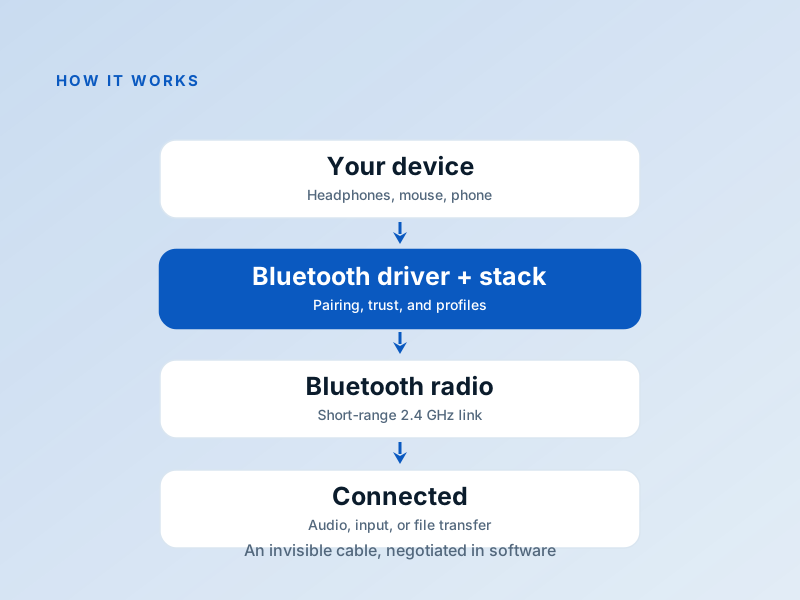
The Bluetooth driver operates your computer's 2.4 GHz short-range radio — but the radio is only the start. Above it sits a software stack that runs discovery (“what's nearby?”), pairing (“do we trust each other?”), and the long-term list of devices your machine remembers.
Every kind of gadget then speaks its own profile — one for stereo audio, one for keyboards and mice, one for file transfer — and the stack loads the right profile for each connection. That's why one radio can serve your headphones, your mouse, and your phone at once, each in its own dialect, while the driver also manages the radio's power draw so your battery survives.
- Runs discovery, pairing, and your trusted-device list
- Speaks the right profile for each gadget — audio, input, file transfer
- Hands connected audio devices to the system's sound stack
- Manages radio power so the battery isn't drained
Pairing Problems and Vanishing Devices
A device that refuses to pair, headphones that connect but play no sound, or a mouse that dies every time the laptop sleeps — Bluetooth's classics are consistent, and so are the fixes.
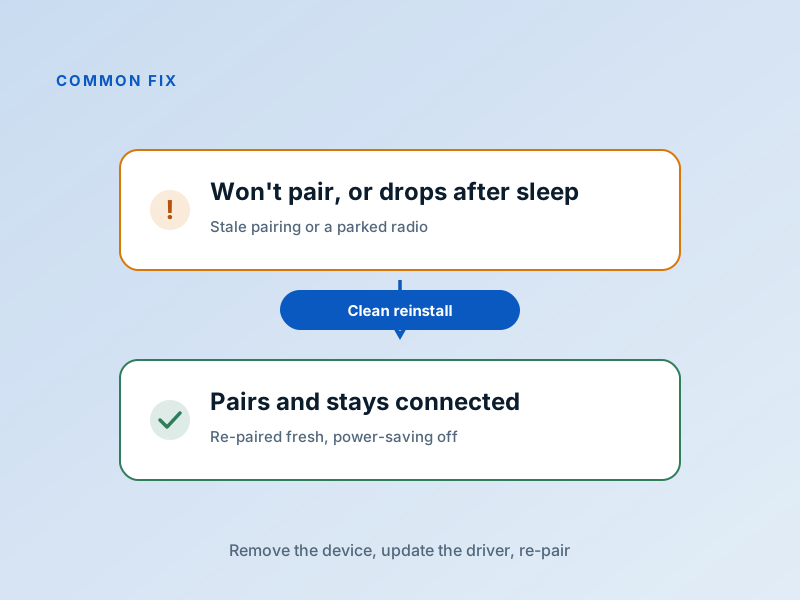
Stale pairing records cause most refusals: removing the device from the list and pairing fresh clears them. Audio-but-silent is usually a default-output selection, not the radio. And the post-sleep vanishing act is our old friend power management putting the radio into a nap it doesn't wake from — one checkbox, plus a current driver from your laptop maker, fixes it.
Fix it in five careful steps
- Remove and re-pair — Delete the device from your Bluetooth list first, put it back into pairing mode, then pair fresh — stale records cause most refusals.
- Charge and close the distance — Low batteries make devices flaky before they make them dead. Charge up and pair within arm's reach.
- Update the Bluetooth driver — Get it from your laptop maker's support page for your exact model — Bluetooth drivers are tuned per machine.
- Turn off radio power-saving — In the adapter's power-management settings, stop the system from turning off the radio to save power.
- Clear the airwaves — Move away from USB 3 hubs and crowded 2.4 GHz Wi-Fi; interference mimics driver failure surprisingly well.
If anything here feels out of your depth, that's a normal feeling — a local technician can run this exact routine in minutes. Nothing on this page requires special tools.
Common Device Manager codes for this category
When the Bluetooth radio itself is unhappy, Device Manager shows the usual short codes:
| Code | What it means in plain English | The usual fix |
|---|---|---|
Code 43 | The Bluetooth radio misbehaved and was stopped. | Reinstall the Bluetooth driver from your laptop maker; toggle the radio off and on. |
Code 28 | No driver is installed for the radio. | Install the Bluetooth package for your exact model and OS version. |
Code 10 | The radio cannot start. | Uninstall the device in Device Manager, restart, and let it reinstall — then update the driver. |
Code 45 | The radio isn't present — often right after sleep. | Restart, then disable the radio's power-saving option so it wakes reliably. |
Frequently Asked Questions
The questions readers send us most about this topic.
My headphones are paired, but sound still comes from the laptop. Why?
Pairing and audio routing are separate steps. Open your sound settings and select the headphones as the output device — the system doesn't always switch automatically.
Why does my Bluetooth mouse stutter near my Wi-Fi router?
Bluetooth and many Wi-Fi networks share the crowded 2.4 GHz band, and some USB 3 devices radiate interference in the same range. Move the receiver or device away from those sources; congestion, not the driver, is the usual culprit.
My headphones pair with my phone but not my computer. What's different?
Remove any old entry for the headphones on the computer, put them back into pairing mode, and try again with an updated Bluetooth driver from your laptop maker. Computers keep stale pairing records far more often than phones do.
Want us to explain another driver topic?
Our friendly overview covers every major hardware category — from the device on your desk to the chips inside your laptop.