

Where Your GPU Meets the Real World
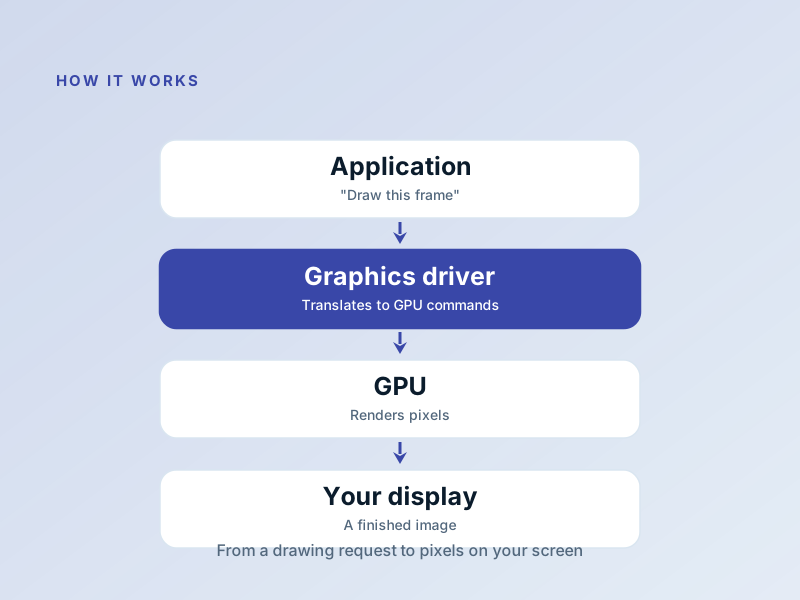
Every frame on your screen is the result of a quiet conversation between the operating system, the graphics card, and a remarkable piece of software called the graphics driver.
What a Graphics Driver Does
A graphics driver receives drawing instructions from the operating system and your applications, then translates them into the exact commands your specific GPU understands. It manages memory on the card, schedules rendering work, and pushes finished frames to the display at the right moment.
It also exposes advanced features — hardware video decoding, multiple-monitor layouts, and game-ready optimisations — that applications can ask for without knowing the details of your card.
- Translates rendering calls into GPU-specific commands
- Manages video memory and the frame buffer
- Handles multi-monitor layout, scaling, and refresh
- Enables hardware video decode and acceleration
Common Display Frustrations
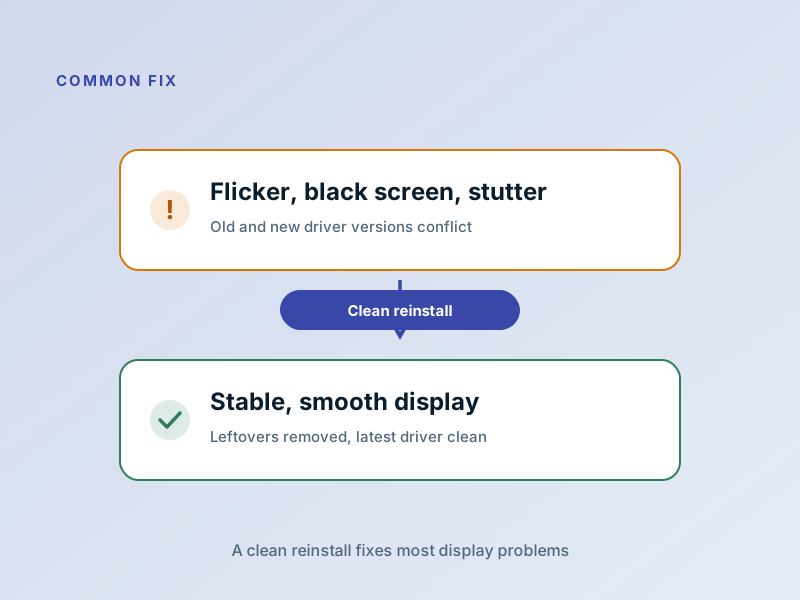
Flickering, a screen that goes black after waking, stutter in games, or a resolution that won't stick — these are the classic graphics-driver complaints, and they're usually among the most fixable.
A clean reinstall of the latest driver from your card maker resolves the large majority of them, because it removes leftovers from previous versions that can quietly conflict. For laptops, your computer maker's site is often the better source, since their build is tuned for your exact panel and power settings.
Fix it in five careful steps
- Note your exact GPU model — Open Device Manager → Display adapters (or your system information tool) and write down the full model name.
- Download the right driver — Get it from the GPU maker's official site — or, for laptops, your laptop maker's support page, which is tuned for your panel and power limits.
- Uninstall the current driver — In Device Manager, uninstall the display adapter and tick "delete the driver software for this device" if offered.
- Restart, then install — Reboot, run the installer you downloaded earlier, and choose the clean or custom install option when available.
- Restart and verify — Reboot once more, then confirm your resolution and refresh rate are back at the panel's native values.
If anything here feels out of your depth, that's a normal feeling — a local technician can run this exact routine in minutes. Nothing on this page requires special tools.
Refresh Rate, Resolution & Gaming Performance
Your graphics driver controls how fast your display redraws and at what resolution. Understanding these settings helps you get the best visual experience for your hardware.
Refresh Rate (Hz)
What it means: How many times per second your monitor redraws the image. Like frames per second, but for the display itself.
Common rates:
- • 60 Hz (standard, feels smooth)
- • 120-144 Hz (gaming, very smooth)
- • 165+ Hz (competitive gaming, pro work)
Your driver must match your monitor's native refresh rate. Mismatches cause stuttering and tearing.
Resolution (Pixels)
What it means: How many pixels (tiny dots) make up your display. More pixels = sharper, more detailed image.
Common resolutions:
- • 1920×1080 (Full HD, standard)
- • 2560×1440 (QHD, sharp)
- • 3840×2160 (4K, very sharp)
Higher resolution uses more GPU power. Your driver needs a card with enough memory to handle it.
Scaling & DPI
What it is: When your monitor's native resolution is too sharp to read comfortably, scaling makes everything bigger.
Example: A 4K monitor with 150% scaling shows text and icons at readable size while keeping the crisp detail.
The driver handles this scaling, and it's where some blurriness can creep in. A fresh driver often fixes scaling problems.
GPU Memory (VRAM)
What it is: The memory built into your graphics card. It holds textures, models, and the frame being rendered.
Typical amounts:
- • 2-4 GB (basic, light gaming)
- • 6-8 GB (modern gaming, video work)
- • 12+ GB (high-end gaming, 4K, AI work)
Running Multiple Displays
Your graphics driver is what detects, arranges, and displays content across multiple monitors. Here's how it all works.
Connection Types
HDMI: Most common, good for most monitors, limited to 60 Hz above 4K.
DisplayPort: Newer standard, supports higher refresh rates and multiple monitors from one port.
USB-C: Convenient for laptops, can carry power and video in one cable.
Thunderbolt: Very fast, also supports multiple displays at high refresh rates.
Your driver recognizes which monitor is connected to which port and routes video accordingly.
Setting Up Multiple Monitors
Windows detects them automatically. Go to Settings → Display to arrange them: which is primary, whether they're to the left or right of each other, and whether they mirror or extend.
If a monitor isn't detected: Press Win+P to open the display menu, or right-click on the desktop and select Display settings. If it still doesn't appear, the driver may be out of date.
The driver physically routes the signal to the correct monitor, so an outdated driver won't detect a new display.
Performance Impact
Running 2 displays uses roughly 1.5× the power of one. Running 3 or more can significantly impact gaming performance and battery life on laptops.
For gaming: Running your game on one monitor at high refresh while using others for chat or web browsing is fine. Stretching the game across multiple monitors uses a lot of GPU power.
Refresh Rate Mismatches
If you connect a 60 Hz and a 144 Hz monitor to the same system, both will work — but they run at different rates. Some drivers let you choose independent rates; others sync them to the lowest common value.
For gaming, plug your high-refresh monitor into the main GPU output and set your game to run there.
Common Device Manager codes for this category
These short codes appear next to the display adapter in Device Manager when something goes wrong. Here is what the most common ones actually mean — and the fix that usually clears them.
| Code | What it means in plain English | The usual fix |
|---|---|---|
Code 43 | The driver told the system the graphics device stopped responding. | Clean reinstall of the latest driver; on desktops, check the card's seating and power cables. |
Code 31 | The system can't load the driver for the display adapter. | Uninstall the device, restart, then install the maker's current driver. |
Code 22 | The display adapter has been disabled. | Re-enable it in Device Manager, then restart. |
Code 10 | The device cannot start — usually a corrupt or mismatched driver. | Remove the old driver software completely, then install fresh. |
Frequently Asked Questions
The questions readers send us most about this topic.
Why does my screen flicker after a driver update?
Flicker usually means the new driver and an old leftover are fighting, or the refresh rate reset. Do a clean reinstall and confirm your display's refresh rate matches the panel's native value.
My second monitor isn't detected — is that the driver?
Often yes. A fresh graphics driver, plus checking the cable and the correct input on the monitor, resolves most detection problems. The driver is what enumerates and arranges attached displays.
Should I update my graphics driver even if nothing is wrong?
If your machine is stable and you don't play new games, a relaxed pace is fine — every few months, or when a fix you need ships. Gamers benefit most from staying current, since new titles often get day-one driver optimisations.
Want us to explain another driver topic?
Our friendly overview covers every major hardware category — from the device on your desk to the chips inside your laptop.