

Keep Your Drivers Updated,Keep Your PC Running Better.
Discover how to update device drivers safely, improve system performance, troubleshoot common hardware issues, and keep your Windows PC running smoothly with easy-to-follow guides.
Driver Knowledge Center
Learn • Update • Optimize
1000+
Monthly Readers
So… What Exactly Is a Driver?
Three small ideas that unlock everything about drivers. Tap a tab to dive in.
The Friendly Translator
Picture this: you hit "Print." Your document jumps from your screen straight onto paper. But here's the secret — your computer and your device don't actually speak the same language. The driver is the tiny, invisible piece of software in the middle, making sure both sides understand each other clearly.
Every piece of hardware connected to your computer — keyboards, speakers, webcams, hard drives, even the screen you're reading this on — needs its own translator. Without one, your operating system would simply shrug and say, "Sorry, I have no idea what that thing is."
The clever part? Hardware makers and OS designers agreed long ago on shared "rulebooks" that drivers must follow. That's why the same app can print to thousands of different devices — each device's driver speaks the same shared dialect with the OS.
The Translator
Picture this: you hit "Print." Your document jumps from your screen straight onto paper. But here's the secret — your computer and your device don't actually speak the same language. The driver is the tiny, invisible piece of software in the middle, making sure both sides understand each other clearly.
Every piece of hardware connected to your computer — keyboards, speakers, webcams, hard drives, even the screen you're reading this on — needs its own translator. Without one, your operating system would simply shrug and say, "Sorry, I have no idea what that thing is."
The clever part? Hardware makers and OS designers agreed long ago on shared "rulebooks" that drivers must follow. That's why the same app can print to thousands of different devices — each device's driver speaks the same shared dialect with the OS.
Why You Care
Drivers quietly decide how good (or how frustrating) your computer feels every day. Smooth video calls? A happy webcam driver. Crisp speaker sound? An audio driver doing its homework. Lag-free games? A graphics driver firing on all cylinders. When drivers are healthy, you don't notice them — and that's exactly the point.
Now flip it. A grumpy or outdated driver can make a fast laptop feel like it's stuck in molasses, or be the reason an app suddenly stops responding at the worst possible moment. Because drivers run with deep system access, when they misbehave they can affect the whole operating system.
The good news: keeping drivers in shape is one of the easiest, highest-impact things you can do for your PC. A small update can mean smoother gameplay, better battery life, steadier performance, and even small reliability improvements you didn't know about.
How It Works
Follow a simple click. You press "Save." Your app whispers "save this file" to the operating system. The OS turns to the storage driver and says, "Hey, can you handle this?" The driver translates that polite request into the exact electrical signals your hard drive understands. Done — your file is safe. All of this happens in less time than a blink.
Behind the scenes, drivers are stacked like a relay team. Each one has its own job — one talks to the device, another tidies up the data, one handles the physical connection (USB, Wi-Fi, you name it). The request passes runner to runner until it reaches the hardware, and the answer travels back the same way.
What's wild is the speed. A typical request bounces through this whole relay in microseconds. You experience it as "instant," but a tiny, very organized conversation just took place.
Explore Driver Categories
Learn, troubleshoot and understand every major driver category through simple, practical explanations.
Kernel-Mode Drivers
Low-level drivers with direct hardware and memory access.
User-Mode Drivers
Safer drivers that run separately from the operating system kernel.
Printer Drivers
Installation, updates, compatibility and troubleshooting guides.
Graphics Drivers
GPU updates, gaming performance and display optimization.
Audio Drivers
Fix sound issues and understand audio device communication.
Network Drivers
Wi-Fi, Ethernet and connectivity troubleshooting resources.
Bluetooth Drivers
Pairing, connectivity and Bluetooth device support.
USB Drivers
Device recognition, installation and USB troubleshooting.
Chipset Drivers
The foundation that connects all your hardware together.
Storage Drivers
SSD, HDD, and external storage performance and reliability.
Input Devices
Keyboards, mice, touchpads, and game controller support.
Virtual Device Drivers
Software-created devices used by virtualization and emulation tools.
The bridge between software and hardware.
Every click, print command, and device action needs a driver working behind the scenes. Drivers translate instructions between your operating system and physical hardware.
- Understand what drivers actually do
- Fix common device and connectivity issues
- Clear explanations without technical jargon
Software
Apps & Operating System
Driver
Real-time Translator
Hardware
Printers & Devices
100+
Guides
24/7
Resources
Where Do Drivers Actually Live on Your PC?
Spoiler: they're not hiding in some secret folder. Your computer keeps them in a few well-known places — and once you know where to look, you can check, manage, and tidy them up like a pro.

Inside the Device Manager
This is the friendliest place to start on a Windows PC. Right-click the Start button and pick "Device Manager," and a tidy list of every piece of hardware on your machine appears. Click any item and you can see its driver, check its version, update it, roll it back, or remove it entirely.

Through Settings & Updates
On modern Windows systems, head to Settings, then Windows Update, then "Advanced options" and look for "Optional updates." Many driver updates quietly arrive here. On macOS, drivers are bundled into regular system updates. On Linux, your distribution's package manager does the same job.

The Hardware Maker's Website
Every reputable hardware maker keeps a "Support" or "Drivers" section on its official website where you can download the very latest driver for your exact model. Always download directly from the official site — never from a random pop-up.
How to Know Which Driver You're Actually Using
Curious which driver is in charge of your sound, your screen, or your network? It only takes a few clicks to find out — no special tools required.
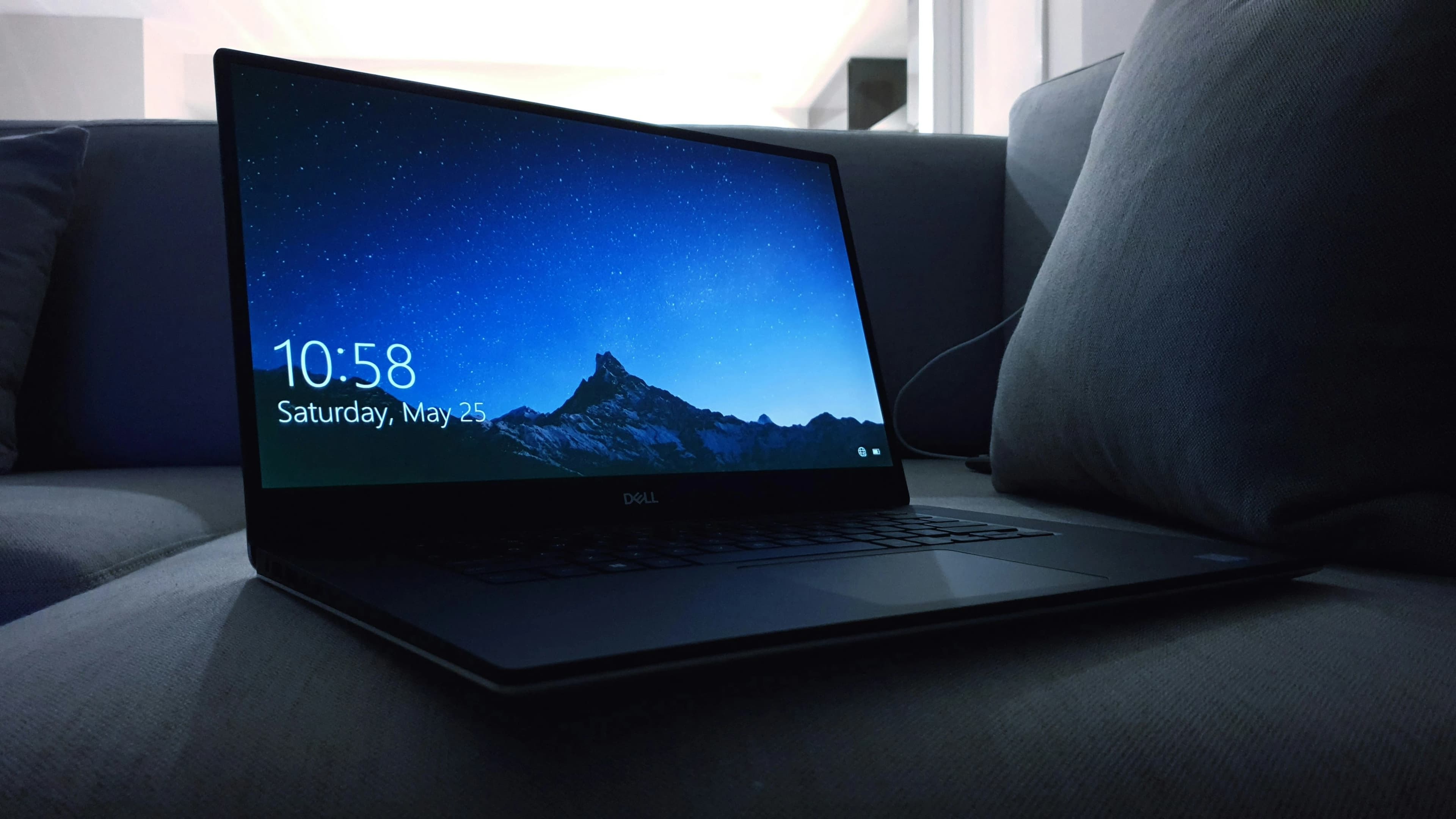
On Windows
Open Device Manager, expand any category, and right-click your device. Choose 'Properties,' then click the 'Driver' tab. You'll instantly see the driver name, publisher, release date, and exact version number.
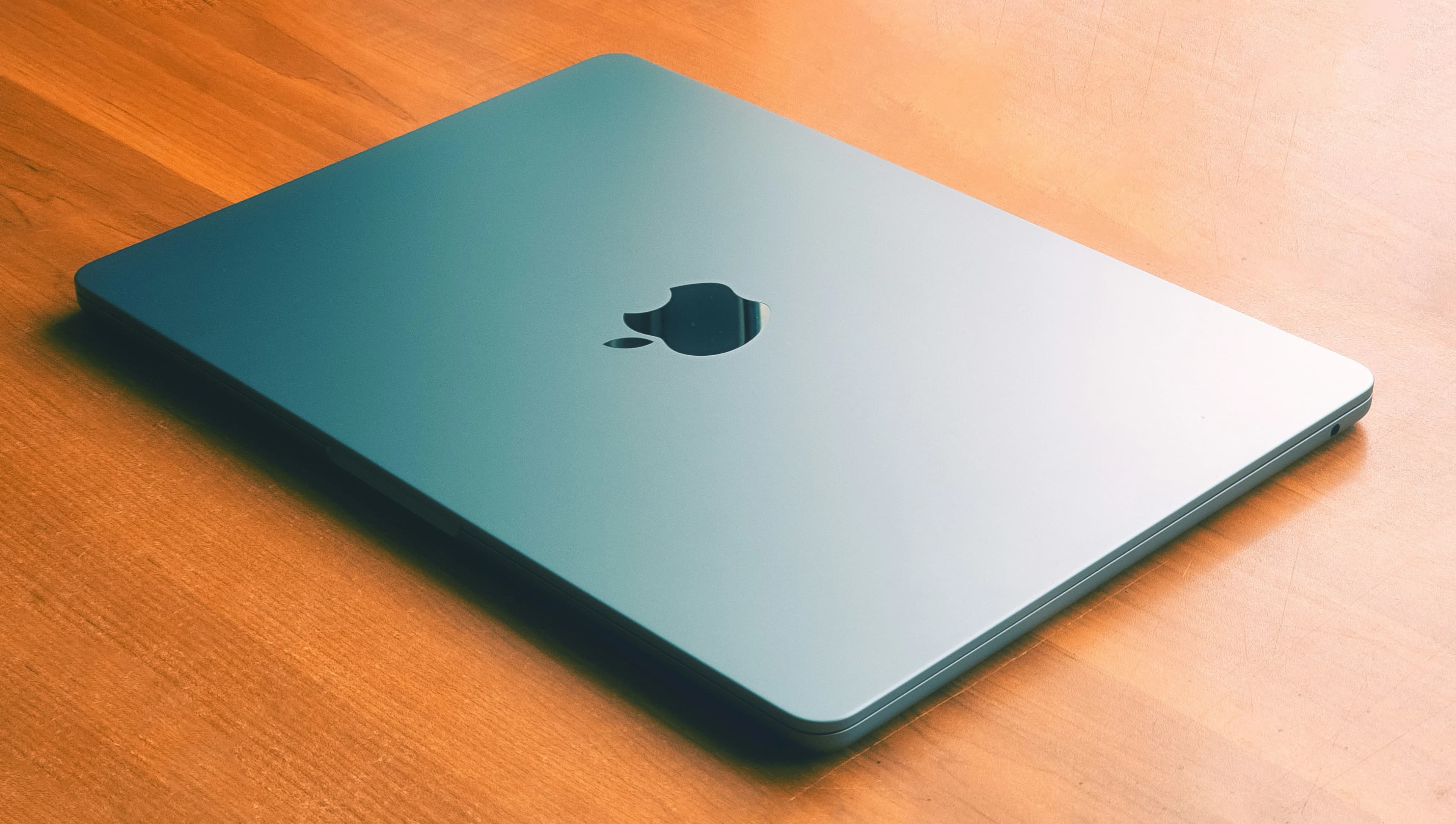
On macOS
Click the system menu, choose 'About This Mac,' then click 'More Info' and 'System Report.' A detailed window opens with sections listing the underlying driver (kext) along with its version.
On Linux
Open a terminal and try friendly commands like `lspci -k` for connected hardware and `lsusb` for USB devices, or `lsmod` to see every driver module currently loaded into the kernel.
Common Driver-Related Problems
Understanding these common driver issues helps in diagnosing and resolving hardware and software problems.
Driver Conflicts
Occur when two or more drivers compete for the same hardware resource, causing unpredictable behavior or system instability. OS manages this, but misconfigurations require manual resolution.
Outdated Drivers
As operating systems evolve, drivers that haven't been updated may fail silently or exhibit reduced performance. Graphics drivers are particularly susceptible to becoming obsolete.
Corrupted Driver Files
Caused by incomplete installations, disk errors, or malware. A corrupted driver may fail to load or produce incorrect behavior. Reinstalling from a known good source resolves this.
Missing Drivers After OS Install
Certain hardware components may not be recognized or function only with basic generic drivers. Downloading the appropriate driver from the manufacturer resolves these issues.
Incompatible Drivers
Occur when a driver designed for one OS version is used with a different version, causing instability or broken functionality. Using a certified driver avoids these problems.
Signed vs Unsigned Drivers
Driver signing uses digital certificates to confirm a driver is verified. Unsigned drivers introduce significant security risks. Always prefer signed drivers from the hardware manufacturer.
Pick a Hardware Category and Dive In
Each overview is bite-sized, friendly, and written to make sense the very first time you read it.
Printer Drivers
Why your device needs special software, what goes wrong, and how to keep output painless across home, office, and shared setups.
Read MoreGraphics Drivers
How GPUs, displays, and modern apps stay in sync — and why a tiny driver update can transform game performance.
Read MoreAudio Drivers
The quiet software shaping every chime, voice call, and music track that comes out of your speakers and headphones.
Read MoreNetwork Drivers
The bridge between your operating system and the wired or wireless chip that connects you to the wider internet.
Read MoreUSB & Devices
How keyboards, mice, drives, webcams, and controllers get recognised the instant you plug them in.
Read MoreSystem Drivers
The chipset, CPU, and storage drivers you never see — but always feel — making your machine boot fast and run smoothly.
Read MoreA Friendly Voice in a Noisy Tech World
We are a small, independent education project built around one stubborn idea — technology should not feel intimidating. Every overview on this site is written to make sense the first time you read it, whether you are a complete beginner or someone who already knows their way around a kernel debugger.
No sponsorships. No affiliate links. No "instant driver updater" nonsense. Just clear, honest explanations of how things actually work.
- Independent and free to read, always
- Plain-English first, technical accuracy second to none
- Privacy-respecting — no aggressive trackers
Understand Every Type of Driver
Explore the different kinds of drivers that make your hardware work—from kernel-mode foundations to virtual devices.
Kernel-Mode Drivers
Low-level drivers with direct hardware and memory access.
Learn moreUser-Mode Drivers
Safer drivers that run separately from the operating system kernel.
Learn morePrinter Drivers
Installation, updates, compatibility and troubleshooting guides.
Learn moreGraphics Drivers
GPU updates, gaming performance and display optimization.
Learn moreAudio Drivers
Fix sound issues and understand audio device communication.
Learn moreNetwork Drivers
Wi-Fi, Ethernet and connectivity troubleshooting resources.
Learn moreBluetooth Drivers
Pairing, connectivity and Bluetooth device support.
Learn moreUSB Drivers
Device recognition, installation and USB troubleshooting.
Learn moreChipset Drivers
The foundation that connects all your hardware together.
Learn moreStorage Drivers
SSD, HDD, and external storage performance and reliability.
Learn moreInput Devices
Keyboards, mice, touchpads, and game controller support.
Learn moreVirtual Device Drivers
Software-created devices used by virtualization and emulation tools.
Learn moreCommon First Questions
The questions readers ask most before exploring our guides.