

Take a Breath.
Most Driver Problems Have a Simple Fix.
A calm, ordered walkthrough for every common driver problem. Every symptom on this page links to a dedicated step-by-step fix overview — plain-English explanations, zero jargon walls, and zero downloads required.
Try These Four Things First, Every Time
Before you blame the driver, blame the boring stuff. These four steps fix more problems than anything else combined.
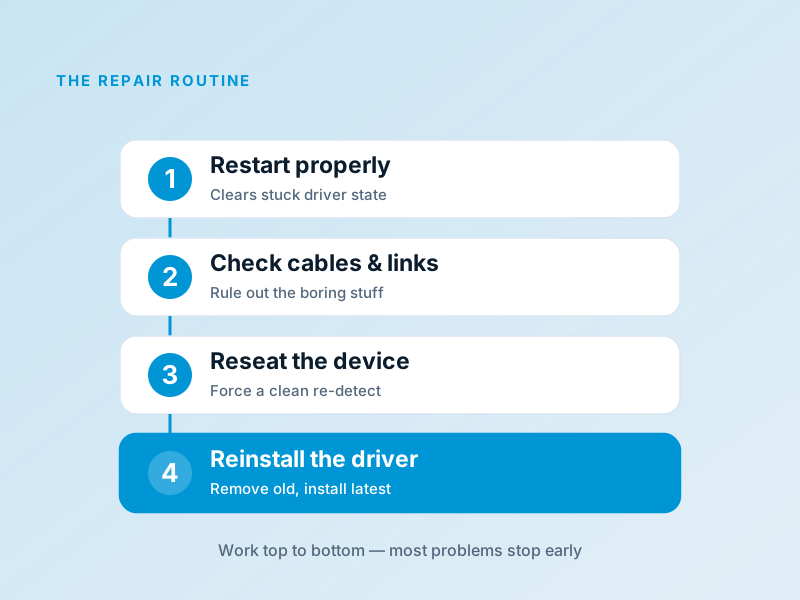
Restart, Properly
A full restart, not just closing the lid. It clears stuck driver state and resets every device on the system. Try this first, always.
Check the Cable or Wireless Link
Loose USB cables, a Bluetooth toggle that flicked off, a Wi-Fi network silently switched — physical and wireless layers cause more "driver" problems than drivers themselves.
Reseat the Device
Unplug, wait ten seconds, plug back into a different port if possible. This forces the operating system to re-detect the device and reload the driver cleanly.
Check for Pending Updates
An interrupted operating system update can leave drivers in an in-between state. Let any pending updates finish, then restart again.
Still Misbehaving? Reset the Driver
If the universal fixes did not solve it, the driver itself probably needs a reset. The order matters.
The Clean Reinstall, Step by Step
- 1Identify the exact device and the maker of the chip inside it.
- 2Visit the official manufacturer support page and download the latest driver for your operating system version.
- 3In your operating system's device manager, uninstall the existing driver — and tick the option to remove the driver software too, if offered.
- 4Restart the computer.
- 5Run the freshly downloaded driver installer.
- 6Restart again, then test.
This sequence resolves the vast majority of stubborn driver problems. The reason it works so well is that it removes any leftovers from previous installs that might be silently fighting with the new version.
Find Your Problem, Get a Dedicated Fix
Each card opens a full step-by-step overview with images, common causes, and an ordered fix routine.
Device Prints Blank or Garbled Pages
Almost always a device driver issue. Reinstall the latest driver from the device manufacturer, not from a generic listing.
No Sound Coming Out
Check default output device first, then reinstall the audio driver from your laptop or motherboard maker.
Wi-Fi Drops Constantly
Disable aggressive power-saving on the network adapter, then update the driver from the laptop maker.
Screen Flickers or Goes Black
Almost always a graphics driver problem. Roll back to a known-good version or do a clean install.
USB Device Not Recognised
Try another cable, then another port. If it still fails, reinstall the device-specific driver and the USB controller driver.
Computer Feels Slow After Update
Re-install the chipset driver and check the GPU driver. Updates sometimes replace tuned drivers with generic ones.
A Quick Note on Safety
Always download drivers from your hardware manufacturer's official website. Avoid third-party "driver updater" tools that promise instant fixes — they often install bundles you do not need, and occasionally cause the very problems they claim to solve.
If you are not comfortable making changes to your system, ask a trusted technician. There is no shame in it. The same way most people happily call a plumber, calling someone who knows their way around a computer is perfectly sensible.
Still Stuck? Tell Us About It
If you have worked through these steps and your problem persists, drop us a line. We may not be able to solve it for you, but we love adding new symptoms and fixes to our overviews.