

The Universal Translator forPlug-and-Play
Plug something in and within a second your computer knows exactly what it is and how to talk to it. That little feat of engineering is your USB driver stack in action!
What the USB Stack Does
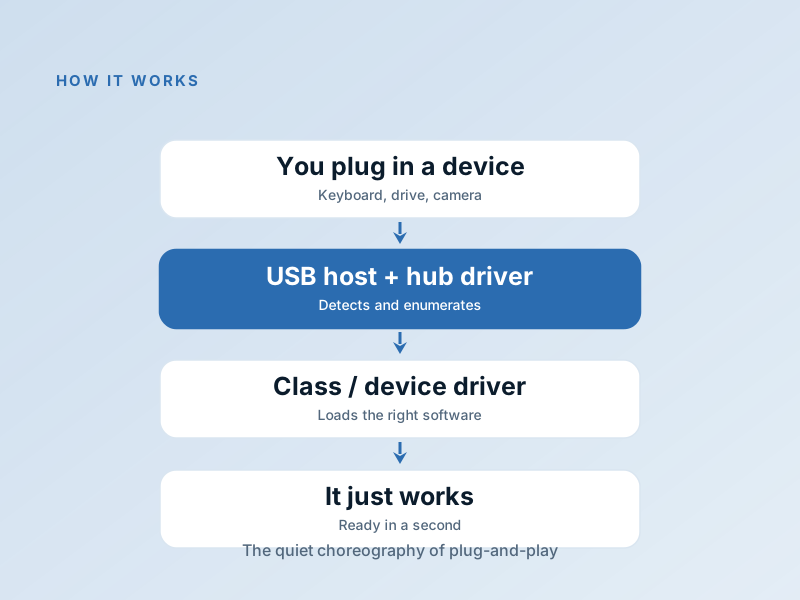
When you connect a USB device, a chain of drivers springs into action: host controller driver manages the physical port, hub driver tracks what's attached, and class or device-specific driver handles talking to that type of hardware!
Together they enumerate, assign resources, and load correct software so it just works, often without you lifting a finger!
When USB Devices Act Up
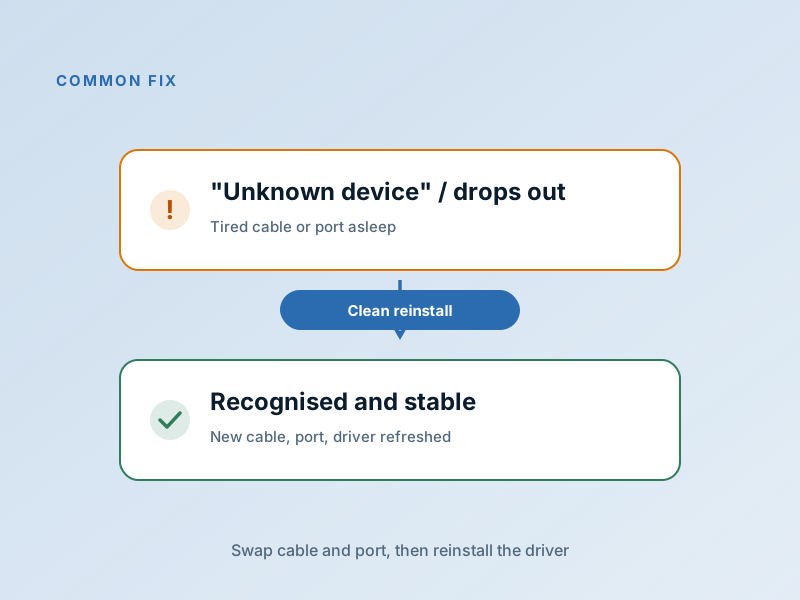
Unknown device error in Device Manager
Try another port/cable, or install maker's specific driver!
External drive mounts but disappears
Check cable, port, and disable USB selective suspend!
USB device charges but won't connect
The data pins are damaged or cable is power-only!
Most USB issues can be solved with "swap cable → try new port → reinstall device driver" — that's your go-to first three steps for almost any USB problem!
Fix it in 5 Careful Steps
Swap the cable first
Cables fail way more often than ports or drivers — this saves so much time!
Try another port
Move from a hub or front panel to a port directly on your computer itself!
Reinstall device driver
Uninstall device in Device Manager, unplug, restart, reconnect!
Update USB controller driver
Install chipset/USB controller from your PC or motherboard maker!
Disable USB selective suspend
If device drops out when idle, turn off USB selective suspend in power settings!
Common USB Device Manager Codes
The usual suspects and what to do about them!
| Code | What it Means | The Fix |
|---|---|---|
Code 43 | USB device misbehaved and was stopped by OS! | Try another cable/port, then reinstall device driver! |
Code 28 | No driver found for the device! | Install official driver from manufacturer! |
Code 45 | Device disconnected or port lost connection! | Reseat connection and replace bad cables! |
Code 10 | The USB device cannot start! | Uninstall in Device Manager, unplug, restart, reconnect! |
Frequently Asked Questions
Questions we get asked most about USB and device drivers!
USB device shows as 'Unknown Device' — what now?
Why does my external drive keep disconnecting randomly?
Do I need to 'safely remove' my USB drives?
Want to Learn About All Driver Types?
Understand the full spectrum from user-mode to kernel-mode, and when each is the right choice.