

The Soundtrack Between Your PC andSpeakers
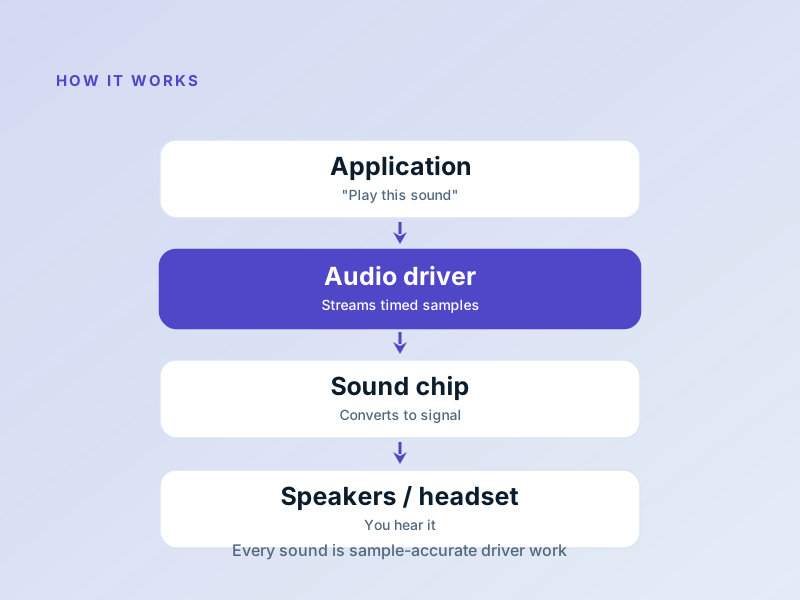
Every beep, music track, or voice chat you hear is translated from digital data into electrical signals by the audio driver.
What an Audio Driver Does
An audio driver tells the operating system how to communicate with the sound hardware — the chip that produces analog waveforms for your speakers or headphones. It handles formats, sample rates, and volume control, and bridges applications (like music players or video calls) to the hardware.
Typical Sound Issues & Fixes
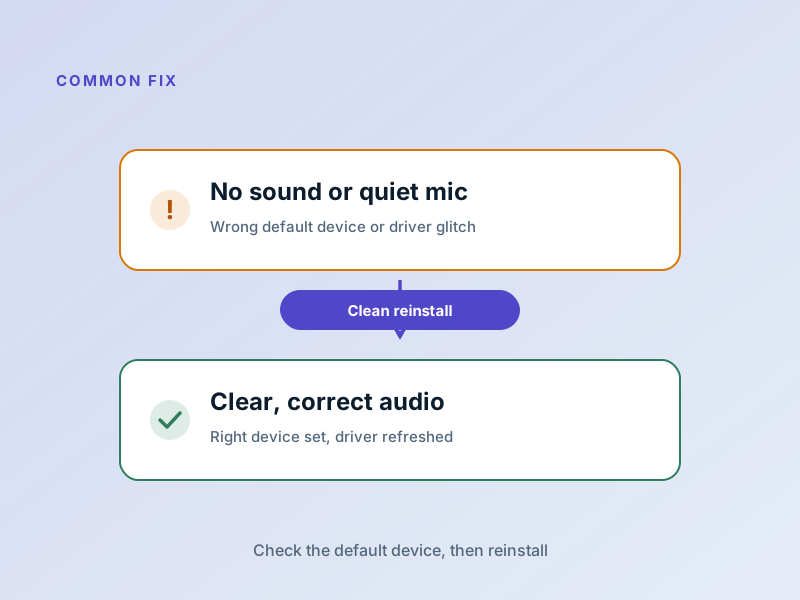
No Sound
Reinstall the driver from the hardware maker
Static or Crackling
Update to the latest driver and check audio format settings
Wrong Device Selected
Ensure the correct output device is selected in system sound settings
Latency in Voice Chat
Use the high-performance driver mode and disable audio enhancements
Fix Audio in 5 Simple Steps
A step-by-step plan to get your audio back on track quickly
Identify the hardware
Open Device Manager → Sound, video and game controllers and note the exact model.
Download the correct driver
Get it from the manufacturer's website or your PC maker's support page.
Uninstall the old driver
In Device Manager, uninstall and tick 'Delete the driver software' if available.
Install the new driver
Run the installer, choose a clean install if that option is presented.
Restart and verify
Reboot, then play a test sound and check that the correct device is selected.
If anything feels beyond your comfort level, a local technician can run this exact routine in minutes. No special tools required!
Understanding Audio Formats & Sample Rates
Audio on your computer is stored and transmitted in different formats — let's break it down.
Sample Rate
How many times per second the audio is sampled. 44.1 kHz (CD), 48 kHz (streaming).
Bit Depth
The precision of each audio sample. 16-bit (CD), 24-bit (professional).
Channels
Mono (1), Stereo (2), Surround (5.1/7.1).
Why it Matters
Sample/bit rate mismatches cause muffled or tunnel-like sound!
Audio Problems Decoded
No Sound at All
Check basics first (volume/muted/connected), then reinstall the driver if needed!
Crackling or Static
Update driver, close background apps, disable audio enhancements in sound settings!
Sound from Wrong Device
Right-click volume icon to check the default output device — easy fix!
Audio Latency in Chat/Games
Lower your sample rate, go wired, disable audio enhancements!
Sound Works in 1 App Only
Fix app-level audio settings; apps sometimes select wrong devices!
Headphones Quiet vs Speakers
Drivers treat headphones/speakers as separate devices; check each volume!
Simple Audio Driver Tweaks
These small changes can make a huge difference!
Turn Off Audio Enhancements
Right-click speaker → Sound settings → Advanced. These often cause more issues!
Use Exclusive Mode
Allows apps to take full control for cleaner, direct audio output!
Set Correct Default Format
Match the format to your typical use (48kHz for streaming, 44.1kHz for music).
Keep Driver Updated
Check monthly; manufacturers release fixes for common issues regularly.
Want to Learn About All Driver Types?
Understand the full spectrum from user-mode to kernel-mode, and when each is the right choice.