

Where Your GPU Meets theReal World
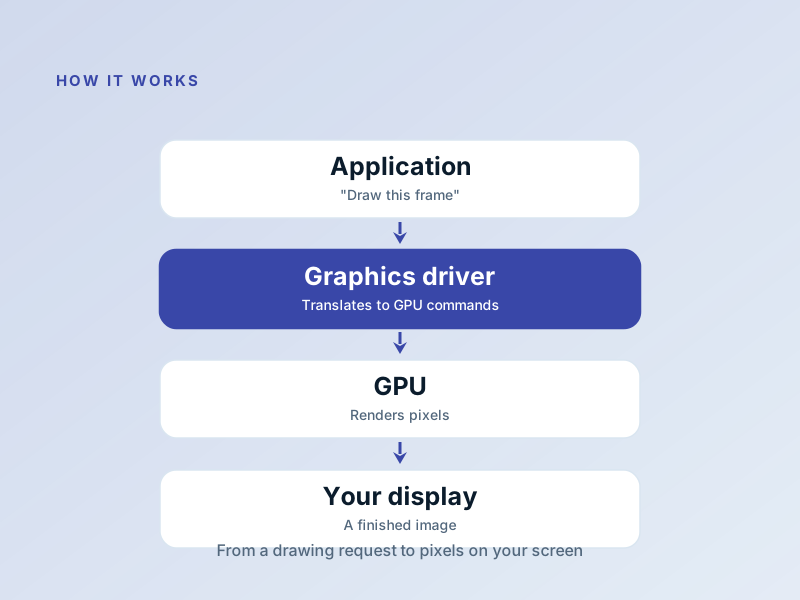
Every frame on your screen is the result of a quiet conversation between your operating system, your graphics card, and a remarkable piece of software called the graphics driver!
What a Graphics Driver Does
A graphics driver receives drawing instructions from your OS and applications, then translates them into commands your specific GPU understands perfectly!
It also enables hardware video decoding, manages multi-monitor setups, and delivers game-ready optimizations!
Common Display Frustrations
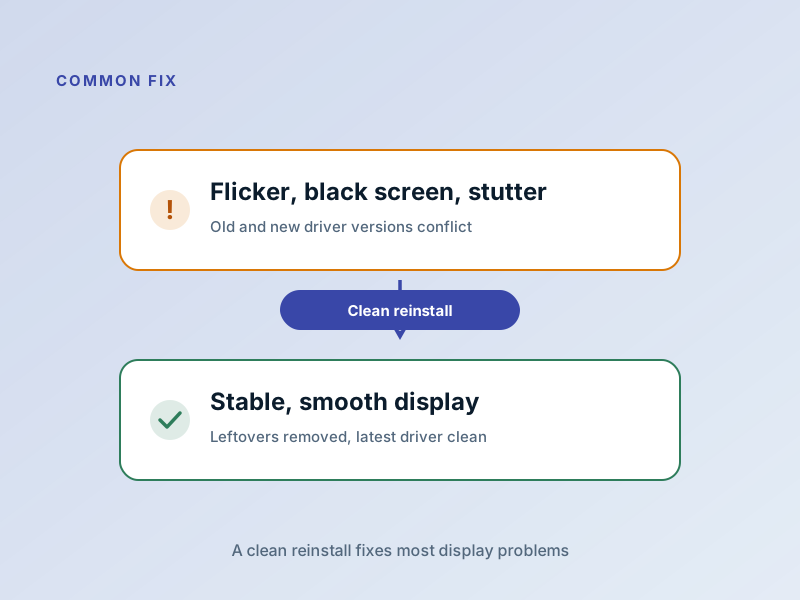
Screen flickering or going black
Classic driver conflict!
Stuttering or low FPS in games
Driver is out of date or corrupted!
Resolution won't stick or wrong refresh
Driver needs a clean reinstall!
The solution is almost always a clean, full reinstall of the latest driver from your GPU manufacturer's site! For laptops, your laptop maker's tuned build is often best!
Fix it in 5 Careful Steps
Note your exact GPU model
Device Manager → Display adapters (or Settings → About → System info)!
Download the right driver first
Get official driver from NVIDIA/AMD/Intel or laptop manufacturer first!
Uninstall current driver cleanly
In Device Manager, delete adapter and tick to remove software!
Restart, install fresh driver
Reboot, run installer you downloaded, choose clean/custom install!
Restart one last time
Full reboot confirms everything is loaded cleanly!
Refresh Rate, Resolution & Scaling
Understanding your display settings helps you get the best visuals and performance!
Refresh Rate (Hz)
60 Hz for basic, 120/144+ for gaming. Driver matches this to your panel!
Resolution (Pixels)
1080p, 1440p, 4K — higher needs more VRAM and power!
Scaling & DPI
Makes content bigger for high-res displays; driver handles this!
VRAM Usage
More VRAM means better performance at higher settings/resolutions!
Multi-Monitor Setup & Connections
HDMI
Most common, great for most monitors; limited to 60Hz at 4K on older cables!
DisplayPort
Best for high refresh rates! Supports 144+ Hz at 1440p/4K with newer cables!
USB-C/Thunderbolt
Convenient for laptops; carries data, power, and video over one cable!
Setting Up Multiple Monitors
Windows detects them automatically; arrange them in Display Settings!
Primary Display
Choose which monitor is main for Windows, apps, and games!
Performance with Multiple Monitors
Extra displays use some GPU resources, but usually fine for most tasks!
Common Device Manager Codes
Here's what they mean and the usual fix!
| Code | What it Means | The Fix |
|---|---|---|
Code 43 | The driver told the OS the GPU has stopped responding! | Clean driver reinstall! |
Code 31 | The OS couldn't load the display driver! | Uninstall, restart, install fresh driver! |
Code 22 | The display adapter is disabled! | Enable the device in Device Manager, then restart! |
Code 10 | The adapter cannot start! Usually corrupt/mismatched driver! | Remove old driver software completely, install fresh! |
Frequently Asked Questions
Questions readers ask most often about graphics drivers!
My screen flickers after a driver update — what do I do?
Second monitor not detected — is that the driver?
Should I update my graphics driver if everything works?
Want to Learn About All Driver Types?
Understand the full spectrum from user-mode to kernel-mode, and when each is the right choice.