

The Bridge Between YourPC and the Internet
Every page you load, every video you stream, every call you join passes through a network driver before it ever reaches your screen!
What a Network Driver Does
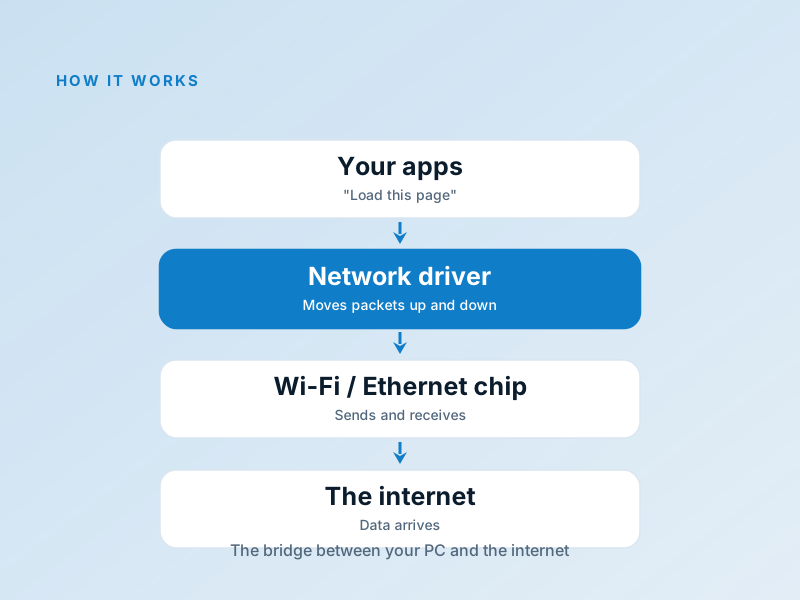
A network driver is the software layer connecting your operating system's networking stack to the physical Wi-Fi or Ethernet chip in your computer!
On wireless, it handles access point association, encryption, and adapts transmission rates as you move around.
Common Connectivity Frustrations
Wi-Fi dropping, slow speeds, or connections not waking up — we've all been there!
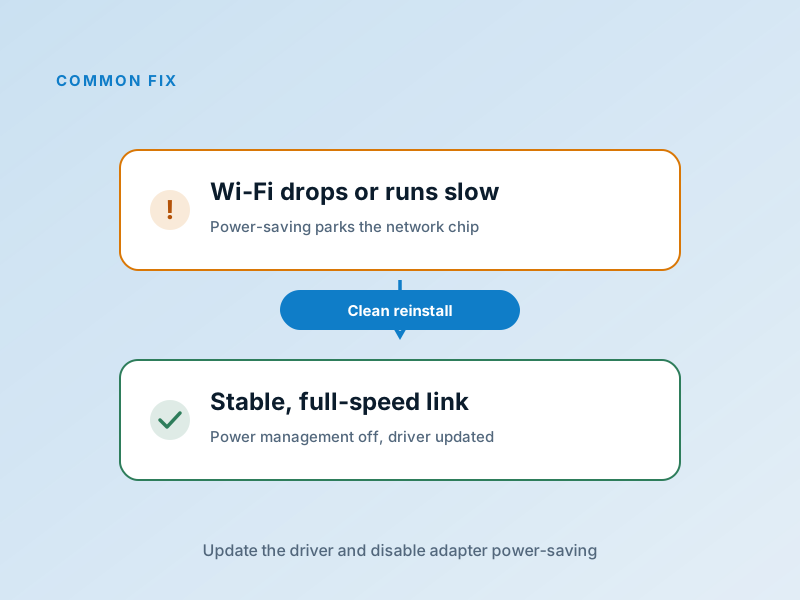
Fix: Clean Reinstall + Power Tweaks
A fresh driver, paired with turning off aggressive OS power-saving on the network chip, resolves 90% of issues!
Wi-Fi dropping every few minutes
Speeds way slower than other devices
Won't connect or asks for password repeatedly
Ethernet works but Wi-Fi won't stay up
Fix it in 5 Careful Steps
Identify the adapter
Device Manager → Network adapters and note exact model!
Download first while you still can
Grab driver from laptop maker (for notebooks) or chip maker while online!
Uninstall old driver completely
Delete the device in Device Manager, tick to remove driver software!
Restart & install fresh
Reboot, run the downloaded installer, reconnect to network!
Turn off aggressive power saving
Adapter properties → Power Management → untick let OS turn it off!
Ethernet vs Wi-Fi
Understanding your driver makes choosing easier!
Ethernet (Wired)
- ✓Direct, stable, low-interference link
- ✓100 Mbps, 1 Gbps, and even 10 Gbps options
- ✓Best for gaming or streaming
Driver's job is simple: move data quickly and reliably!
Wi-Fi (Wireless)
- ✓No cables, perfect for laptops/mobile
- ✓802.11ac/WiFi5: up to 1-3 Gbps
- ✓802.11ax/WiFi6: up to 10 Gbps+
- ✓Driver handles roaming, encryption, rate adaption
Driver has more to do — keep it updated!
Speed & Stability Issues Decoded
Wi-Fi Drops Frequently
Power management! Untick 'let OS turn off adapter'!
Slower Than Other Devices
Update driver, disable power saving, check router!
Won't Connect to Wi-Fi
Forget & rejoin, update driver, check router band!
High Ping/Latency in Games
Go wired, update driver, move closer, no QoS!
No 5 GHz Visible
Check if adapter supports it, check bands on router!
Ethernet Good but Wi-Fi Not
Wi-Fi hardware/driver specific issue, update driver first!
Quick Network Driver Tweaks
These changes are super impactful!
Disable Power Saving for Adapter
The #1 fix for Wi-Fi dropouts! We said it once, we'll say it again!
Check Your Band/Channel
2.4 GHz for range, 5 GHz for speed!
Keep Router Firmware Updated Too
Log into router and check for updates!
Keep Driver Current
Monthly check for updates on manufacturer's site!
Common Device Manager Codes
Here's what they mean and what to do!
| Code | What it Means | The Fix |
|---|---|---|
Code 10 | The network adapter cannot start! | Reinstall the driver! |
Code 31 | The driver failed to load! | Uninstall device, restart, install fresh driver! |
Code 43 | Adapter reported an error, has been stopped! | Clean driver reinstall; for USB adapters try new port! |
Code 45 | Not currently connected (often after sleep)! | Restart + disable power management! |
Frequently Asked Questions
Why is my laptop slower than my phone?
Wi-Fi drops when laptop sleeps?
Ethernet works but Wi-Fi doesn't?
Want to Learn About All Driver Types?
Understand the full spectrum from user-mode to kernel-mode, and when each is the right choice.