

The Translator Between Your Document and the Printed Page
You click Print, and a small chain of software springs into action — formatting the page, queueing the job, and speaking your printer's exact language. Here's how it works, and how to un‑jam it when it doesn't.
What a Printer Driver Does
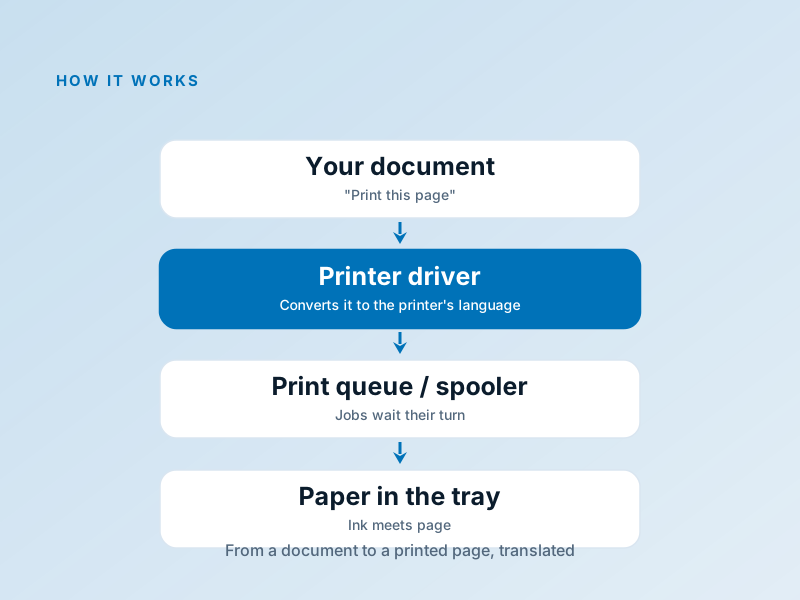
A printer driver takes the page your application has laid out and converts it into the page-description language your specific printer understands — where every line, image, and character should land on the paper. It also presents the printer's abilities to you: paper sizes, print quality, double-sided printing, colour or draft mode.
Between the click and the paper sits the print queue (the spooler), which the driver feeds. Jobs wait their turn there, your application gets to move on instantly, and status — ink levels, paper jams, that blinking light — flows back the other way so you know what's happening.
- Converts your document into the printer's page language
- Exposes paper size, quality, and double-sided options
- Queues jobs through the spooler so apps don't wait
- Reports ink, paper, and error status back to you
Why Printers Go "Offline" (and Other Classics)
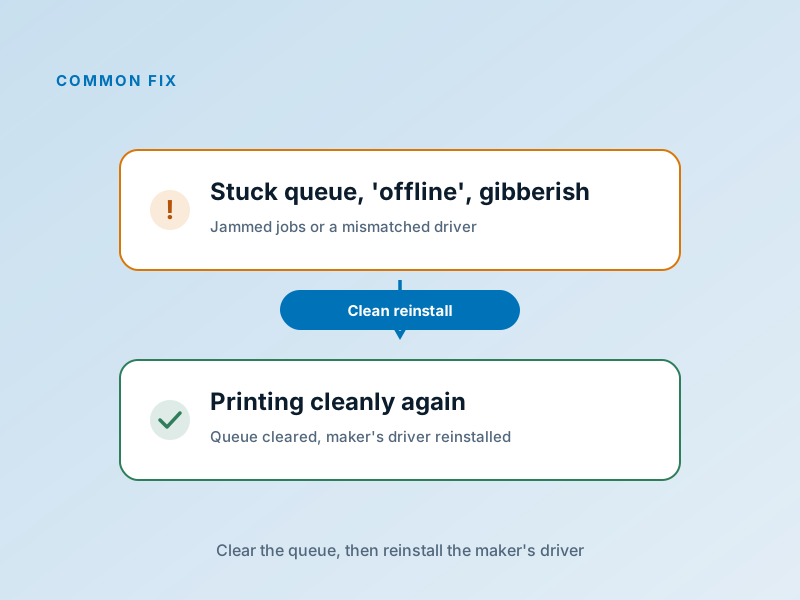
A printer that shows "offline" while sitting right there, a queue that won't move, pages of gibberish symbols, or blank sheets — these are the printing classics, and nearly all of them live in software, not in the machine.
"Offline" simply means the computer can't reach the printer at that moment — a Wi-Fi hiccup, a sleeping device, or a stuck job blocking the queue. Gibberish output means the job was rendered with the wrong driver, often a near-match model. The reliable cure for both: clear the queue, then reinstall the full driver package for your exact model from the maker's support page.
Fix it in five careful steps
Clear the print queue
Open the queue and cancel every document. If a job refuses to leave, restart both the computer and the printer — the queue clears on boot.
Check the connection
For USB, reseat the cable. For Wi-Fi, confirm the printer and the computer are on the same network — most printers can print a network status page from their own control panel.
Set the right default
Make sure the actual printer — not 'Save as PDF' or a duplicate 'Copy 1' entry — is set as the default printer.
Reinstall the maker's driver
Download the full package for your exact model and operating-system version from the manufacturer's support page, remove the old printer entry, and install fresh.
Print a test page
Use the driver's own test-page button. If the test page prints but your document doesn't, the application's print settings are the remaining suspect.
If anything here feels out of your depth, that's a normal feeling — a local technician can run this exact routine in minutes. Nothing on this page requires special tools.
Common Device Manager codes
Printers speak in statuses more than codes, but when the printer itself shows a problem in Device Manager, these are the usual suspects:
| Code | What it means in plain English | The usual fix |
|---|---|---|
Code 28 | No driver is installed for the print device. | Install the full software package for your exact model from the maker's site. |
Code 43 | A USB-connected printer misbehaved and was stopped. | Try another cable and port, then reinstall the printer's driver. |
Code 45 | The printer isn't currently connected. | Power-cycle the printer and re-check the USB or network connection. |
"Error – Printing" | A job is stuck and blocking the queue. | Cancel all documents in the queue; if it won't clear, restart the computer and the printer. |
Frequently Asked Questions
The questions readers send us most about this topic.
My printer shows 'offline' but it's switched on. What now?
Why does my printer print gibberish or strange symbols?
Is the generic driver built into my OS good enough?
Want us to explain another driver topic?
Our friendly overview covers every major hardware category — from the device on your desk to the chips inside your laptop.