

The Bridge Between Your PC and the Internet
Every page you load, every video you stream, and every call you join passes through a network driver before it ever reaches your screen.
What a Network Driver Does
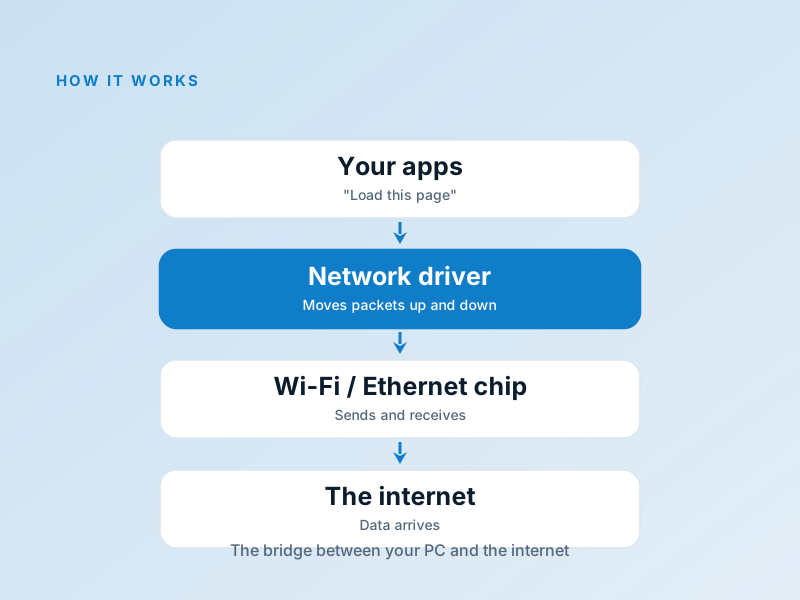
A network driver is the software layer that connects your operating system's networking stack to the physical Wi-Fi or Ethernet chip in your machine. It receives packets from the hardware, hands them up to the operating system, and sends outgoing data back down to be transmitted.
On the wireless side it also manages connecting to access points, handling encryption, and adjusting transmission rates as you move around — all without you noticing.
- Moves packets between the OS and the network chip
- Handles wireless association, authentication, and roaming
- Implements features like checksum offload and packet queuing
- Reports link speed, signal strength, and connection health
Common Connectivity Frustrations
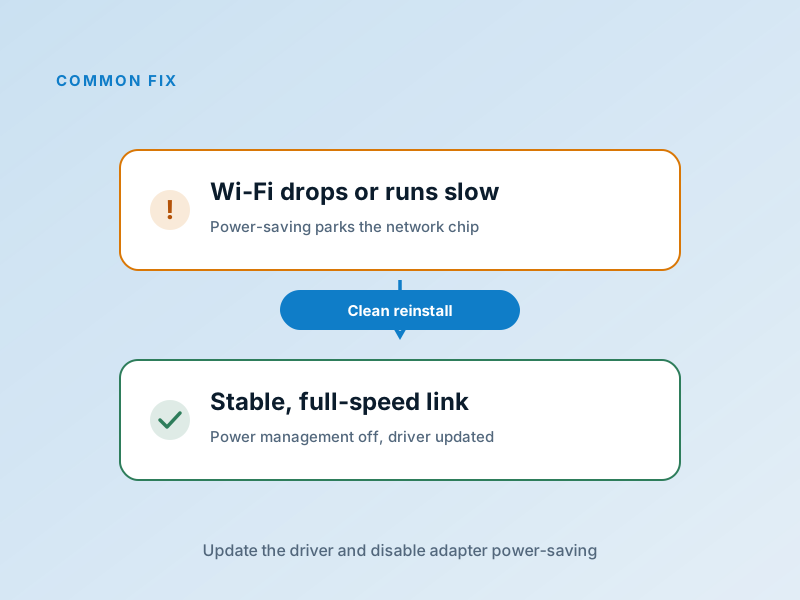
Wi-Fi that drops every few minutes, slow speeds compared to other devices on the same network, or a connection that refuses to come back after sleep — these are the most common driver-related complaints, and among the most easily fixed.
A fresh driver, paired with a power-management setting that stops the OS from aggressively powering down the network chip, solves most of them. For laptops, your manufacturer's site is almost always the right source, since they tune it for your specific Wi-Fi module.
Fix it in five careful steps
- Identify the adapter — Device Manager → Network adapters: note the exact name of your Wi-Fi or Ethernet chip.
- Download the current driver first — From your laptop maker for notebooks, or the chip maker for desktop cards — before you uninstall anything, while you still have internet.
- Uninstall the old driver — Remove the adapter in Device Manager, ticking the option to delete the driver software.
- Restart and install — Reboot, run the installer you downloaded, and reconnect to your network.
- Tame power management — In the adapter's properties, untick "allow the computer to turn off this device to save power" — the single biggest fix for drop-outs.
If anything here feels out of your depth, that's a normal feeling — a local technician can run this exact routine in minutes. Nothing on this page requires special tools.
Wi-Fi vs. Ethernet: Understanding Your Network Driver
Your network driver manages either Wi-Fi or Ethernet (or both). Understanding how each works helps you diagnose speed and stability issues.
Ethernet (Wired)
How it works: A physical cable connects your PC directly to a router or network jack. Data travels through the copper wire — no wireless interference.
Speed tiers:
- • 100 Mbps (older networks)
- • 1000 Mbps / 1 Gbps (modern standard)
- • 10 Gbps (high-end, rare)
The driver's job is simple: move data in and out of the physical port. It's very reliable because there's nothing wireless to interfere.
Wi-Fi (Wireless)
How it works: Radio waves carry data between your PC and the router. No wires needed, but interference and distance affect speed.
Speed standards:
- • 802.11ac (Wi-Fi 5) – 1-3 Gbps theoretical
- • 802.11ax (Wi-Fi 6) – 1-10 Gbps theoretical
- • 802.11be (Wi-Fi 7) – 40+ Gbps theoretical
The driver handles connecting to access points, managing signal strength, and switching networks — much more complex than Ethernet.
When to Use Ethernet
Best for:
- • Gaming (lowest latency)
- • Video streaming or downloading large files
- • Video calls that need stability
- • Desktop PCs where cables aren't an issue
Ethernet is always faster and more stable, when you have the option.
When Wi-Fi is Fine
Good enough for:
- • Browsing the web
- • Email and messaging
- • Casual video streaming
- • Laptops and mobile devices
Modern Wi-Fi drivers are very good. If you're close to the router, you might not notice the difference.
Speed & Stability Problems Decoded
Network issues usually fall into a few categories. Here's how to pinpoint what's wrong with your driver.
Wi-Fi Drops Every Few Minutes
The culprit: Almost always power management. Windows aggressively powers down the Wi-Fi chip to save battery, and the driver doesn't wake it cleanly.
The fix: Right-click the network adapter in Device Manager → Properties → Power Management. Uncheck "Allow the computer to turn off this device." Restart. This is the single most important tweak.
Connection Speeds Are Slow
Check first: What speed does Device Manager show? Is your router actually broadcasting fast speeds?
Driver fix: Update to the latest driver. Older drivers often don't support the newest Wi-Fi standards. Disable power-saving mode (see above) — it can throttle speeds to save battery.
Wi-Fi Won't Connect or Keeps Asking for Password
The problem: The driver lost its stored credentials or the router handshake is failing.
Fixes: Forget the network in Wi-Fi settings, then reconnect. Update the driver. Restart the router. Check if your router is on the correct Wi-Fi standard (some older drivers don't support newer standards like Wi-Fi 6).
High Ping / Latency Issues
What this means: Data is taking longer to get there and back (ping is the round-trip time).
Fixes: Switch to Ethernet if possible (it's more reliable). Update the driver. Move closer to the router. Check if other devices on Wi-Fi are hogging bandwidth. Disable Wi-Fi power saving and any QoS settings on the router.
Can't See or Connect to 5 GHz Networks
The issue: Your driver or hardware doesn't support dual-band Wi-Fi, or the 5 GHz network isn't broadcasting the SSID.
Check: Device Manager to see if your adapter lists "802.11ac" or "802.11ax" support. If not, a new card or driver update may be needed. Also ask: Is the 5 GHz band enabled on the router?
Ethernet Works But Wi-Fi is Spotty
What this tells you: The router is fine, the internet is fine — the issue is the Wi-Fi driver or the Wi-Fi chip itself.
Fix: Update the driver first. If issues persist, try moving the PC/router, disable power management, or contact the adapter maker for known issues with your exact model.
Network Driver Tweaks for Better Performance
These small settings changes often improve speed and stability dramatically.
Disable Power Saving for the Adapter
Device Manager → Network adapters → Properties → Power Management. Uncheck "Allow the computer to turn off this device." This is the #1 fix for Wi-Fi dropouts.
Check Your Wi-Fi Band
Right-click the Wi-Fi icon → Network settings → Advanced network options → Wi-Fi. Make sure you're connected to 5 GHz (faster, shorter range) or 2.4 GHz (slower, better penetration).
Update Your Router Firmware
Log into your router's admin panel (usually 192.168.1.1) and check for firmware updates. A new router firmware often includes driver improvements.
Keep Your Driver Current
Check Device Manager monthly for network driver updates. Manufacturers regularly release fixes for speed, stability, and new Wi-Fi standards.
Common Device Manager codes for this category
Next to a misbehaving network adapter, Device Manager shows one of a handful of short codes. Here's the translation.
| Code | What it means in plain English | The usual fix |
|---|---|---|
Code 10 | The network adapter cannot start. | Reinstall the driver from your laptop or motherboard maker. |
Code 31 | The driver for the adapter could not be loaded. | Uninstall the device, restart, then install the current driver. |
Code 43 | The adapter reported a problem and was stopped. | Clean driver reinstall; for USB adapters, also try another port. |
Code 45 | The adapter isn't connected — often seen after sleep. | Restart, then disable 'allow the computer to turn off this device' in the adapter's power management tab. |
Frequently Asked Questions
The questions readers send us most about this topic.
Why is my Wi-Fi slower on my laptop than my phone?
Often the laptop's network chip is parked in a power-saving mode, or it's running an older driver. Update the driver and disable aggressive power management for the adapter to close the gap.
My Wi-Fi disconnects when the laptop sleeps. Is that normal?
It's common but fixable. The OS powers the network chip down to save battery and the driver doesn't always wake it cleanly. A current driver plus turning off 'allow the computer to turn off this device' usually resolves it.
Ethernet works but Wi-Fi doesn't — what does that tell me?
They use different chips and different drivers, so it points squarely at the wireless adapter's driver or settings rather than your router or the operating system as a whole.
Want us to explain another driver topic?
Our friendly overview covers every major hardware category — from the device on your desk to the chips inside your laptop.